
Your Astro workspace
Describe a new site, paste a client brief or attach documents, then let your agent prepare a first version. You can also open an existing project or choose another starting point.
The desktop workspace for studios and freelancers who deliver Astro sites: run your agent on a client project, watch the page change, and read the diff before anything ships.
Apple Silicon · €120.78 including 22% VAT (€99 net; tax varies by location) · AI services separate
Real Astrology screens with demo client projects: edit in the preview, hand a fix to the agent, review the diff and publish.
Works with Claude Code, Codex, Cursor Agent and Antigravity CLI · Git and GitHub CLI · Vercel, Netlify and Cloudflare
More choice of agents. Visual design controls. A workspace for your content.
See what’s newAstrology gives that afternoon back: the check happens in the same window as the change.
Four steps. The project folder, the agent account and the hosting keys stay yours.
Paste the brief, attach client documents and add an optional reference website. Or open an existing Astro folder and continue from there.
Propose to talk a change through, Edit to let the agent write files, Autonomous for broader command access. The request runs in the installed CLI you select: Claude Code, Codex, Cursor Agent or Antigravity.
Read the agent's output with the live preview beside it. Diagnostics and the Git change summary say what moved, and the next request starts from the same screen.
Review your changes, publish to staging for a final check, then make the site public. Production and Staging keep their own addresses and status.
Edit and Autonomous write to the project directly: changes are reviewed in the preview and in Git, not held in a per-file approval queue.
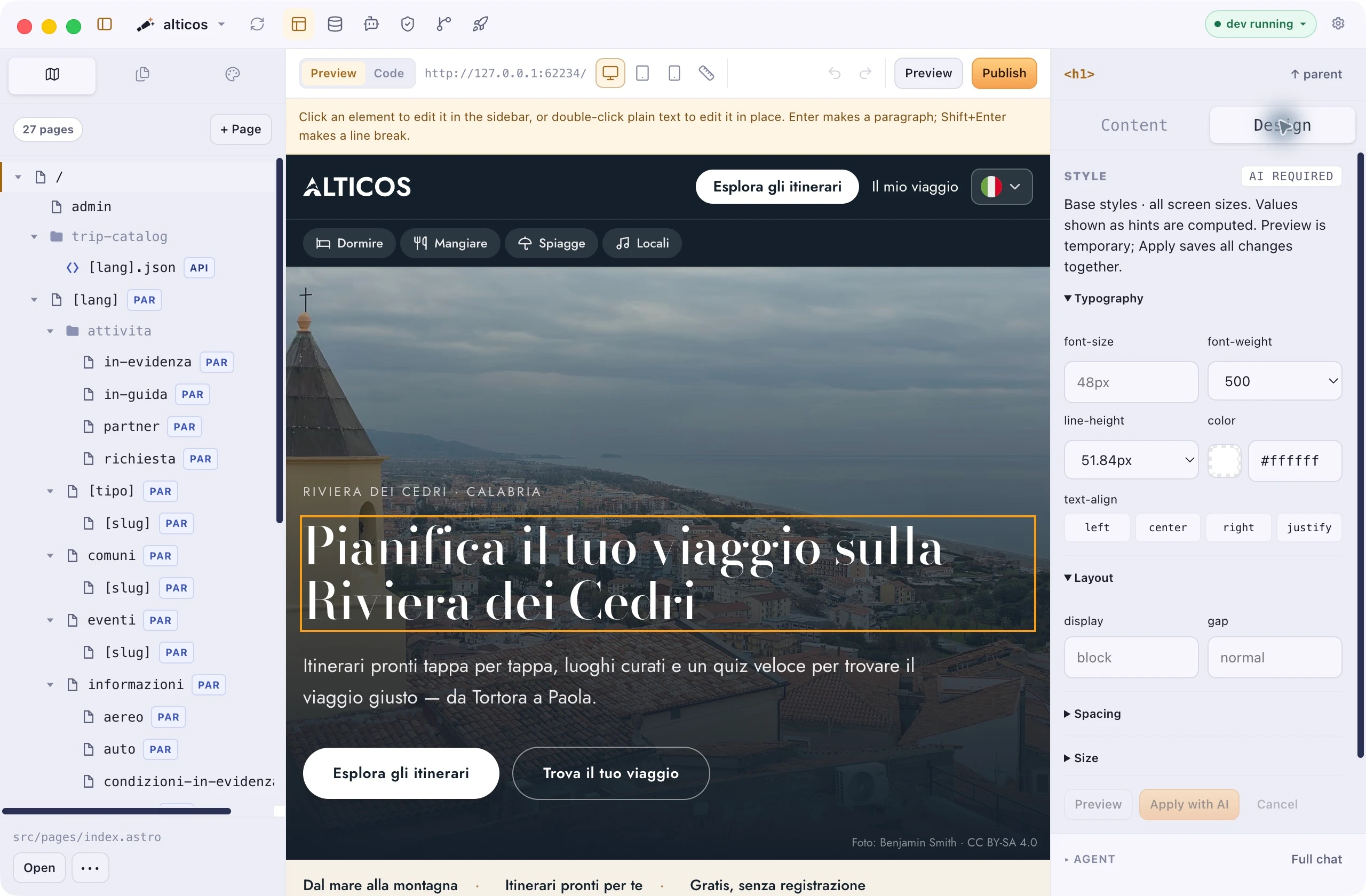
Select text, links or images in the preview. Try a new type size or spacing, check a mobile layout, or ask your agent for a change with the page and selected element already in context.
Structure, page, broken links, translations, history and deploy — the parts of a handover you cannot sign off without looking.
Describe a new site, paste a client brief or attach documents, then let your agent prepare a first version. You can also open an existing project or choose another starting point.
Work with Claude Code, Codex, Cursor Agent or Google Antigravity. Plan a change, let the agent edit, or give it the command access it needs to complete the task.
Edit supported text and links on the page, preview style changes and check desktop, tablet and mobile layouts. Switch to source or ask the agent when a change needs code.
Search entries, filter by language and edit Markdown content with its metadata. Create or duplicate an entry while keeping everything in your project files.
Review changes and commit history, save your work and share it on GitHub. See when your branch has newer commits and update a clean local project.
Review changes, publish to a test environment and make the site public when ready. Connect Vercel, Netlify or Cloudflare and see the status of each environment.
Buy a licence, download the Mac app, and enter your licence key when you first open it. Already bought it? Sign in with your purchase email to download again.
Yes. Choose its folder to add it to the workspace. You can also create a project from a template. Astrology works on the project files in that folder.
Claude Code, Codex, Cursor Agent and Google Antigravity CLI. Install and authenticate the agent you want to use. Astrology runs that CLI; it does not provide an API-key form, an included model subscription or a local-model selector.
The working files stay in your project folder. A new-project brief is stored in local app data outside that folder, then sent to your selected agent CLI for the first implementation. Connected tools can send data over the network according to their configuration and provider policies; Git pushes and deployments send code or build output to the selected service.
Buy your licence. Download Astrology. Start creating.
Requires Node.js, npm and Git · AI features use your installed agent CLI