What’s new

More ways to make it yours.

The latest additions to your Astro workspace, from the agent you choose to the site you deliver.

Highlights from each chapter of Astrology. Related updates are grouped together so you can see what has improved at a glance.

0.8.8Latest update

Choose more freedom, with a clear explanation.

Move from a blocked agent action to Autonomous mode directly from the conversation.

  • Permission messages offer a Switch to Autonomous action. If the agent is still working, you can stop it and switch after confirming.
  • The confirmation explains command and network access, possible file deletion, data sharing and publication. The mode selector shows the same explanation before switching.
  • Requests are never resent automatically. Changing project or agent returns the mode to Edit.
Explore agent modes →
0.8.7

Keep your agent moving.

Claude can read reference websites while planning or editing your site.

  • Web fetching and search work in Propose and Edit modes, including when you continue a conversation.
  • Permission messages explain when to switch to Autonomous for commands and other tools. If an agent needs you to log in, open it in Terminal directly from its failure banner.
Explore agent modes →
0.8.6

Help shape Astrology, on your terms.

Optional usage sharing helps us understand how Astrology is used and where to improve it.

  • Choose whether to share activity and feature outcomes. Sharing stays off until you allow it, and you can change your choice in Environment preferences.
  • Project contents, prompts, accounts and licences are excluded. A random installation identifier changes each month; metrics expire after 90 days.
Read how usage sharing works →
0.8.5

Start with the brief.

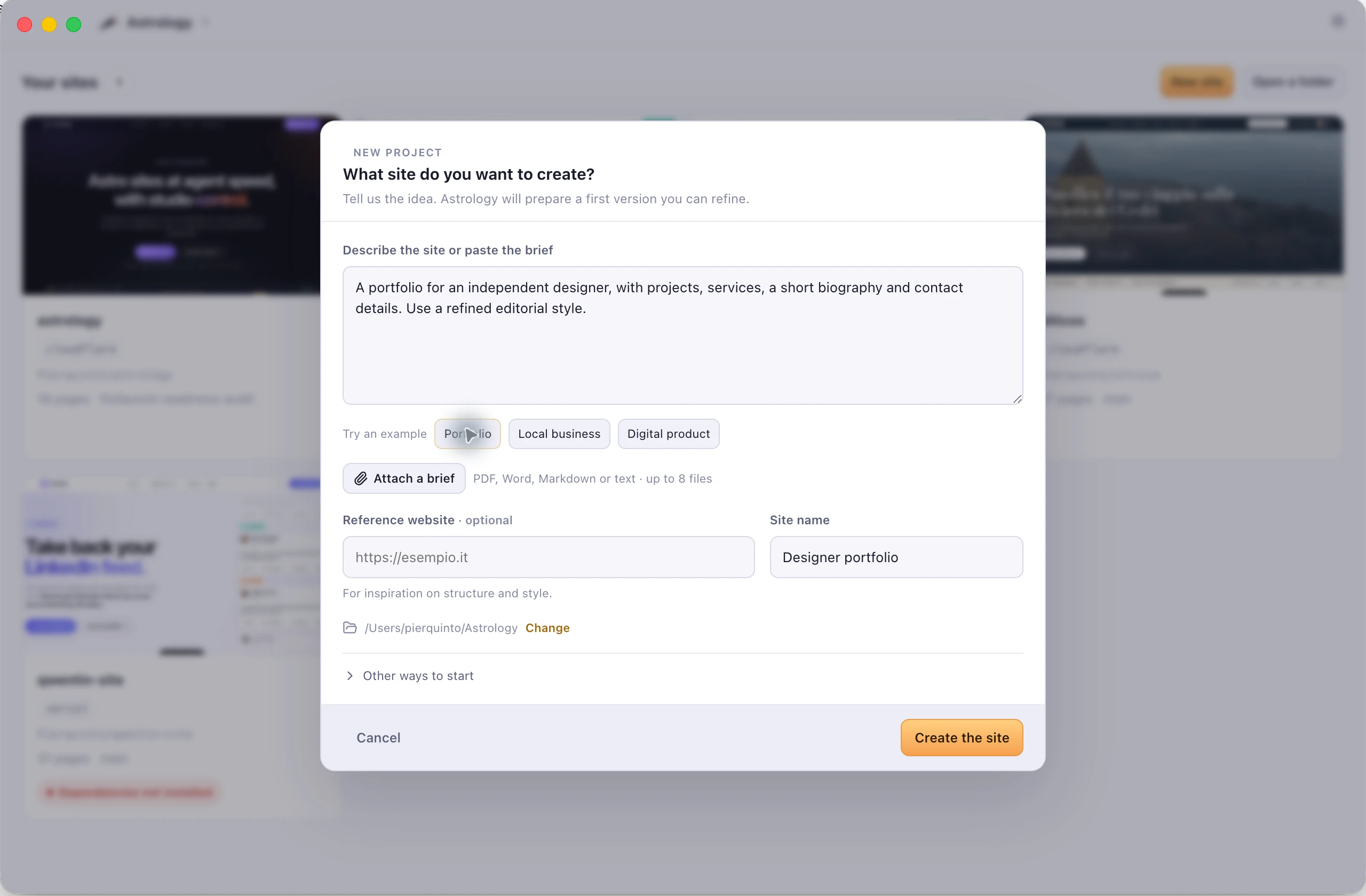
Describe the site once, then let your coding agent prepare the first version in your new Astro project.

  • Paste a client brief or start from a short idea. Add readable PDF, Word, Markdown or text documents and an optional reference website.
  • Astrology keeps the accepted brief outside the site repository and passes it to the agent you chose. Templates, website recreation and folder import remain available under Other ways to start.
The new project dialog with an example portfolio brief and controls for attachments and a reference website
An example portfolio brief in Astrology 0.8.5.
See the new project flow →
0.8.3

Your choice of agent. Your project, up to date.

Bring the coding assistant you already work with into Astrology, and keep your local site in step with your team.

  • Cursor Agent and Google Antigravity join Claude Code and Codex. Choose how much the agent can do: plan a change, edit files or run the commands needed to finish the work.
  • See when your GitHub branch has newer work and bring it into a clean local project without leaving Astrology.
Meet the four agents →
0.8.0–0.8.2

A clearer path from first launch to publication

Get started in your language, see where your site will go, and keep Astrology up to date from the Projects screen.

  • Choose English or Italian before setup and follow the introductory tour in your preferred language.
  • Review your changes before publishing, with distinct Production and Staging spaces and clearer connection status.
  • Check for app updates from Projects or Settings, and send feedback directly from the app.
Explore publishing →
0.6.0–0.7.8

From a starting point to a site you can shape

A guided start, a more capable visual editor and a dedicated home for your content.

  • Create a site from a template or use a public website as a starting point, then develop it with a brief and your agent.
  • Inspect the page at desktop, tablet and mobile widths. Select elements and preview typography, spacing and appearance changes before applying them.
  • Search content collections, filter by language and edit entries alongside their metadata. Pick up agent conversations from your project history.
See content editing →
0.1.0–0.5.3

The workspace comes together

The foundations of Astrology: your site, your agent and the tools to deliver it in one Mac app.

  • Create or import an Astro project, explore its pages and move between live preview and source editing.
  • Ask for changes from the page you are viewing. Replace images from Finder and set their alternative text without hunting through files.
  • Check links, translations and dependencies; review changes with Git and publish through your hosting account.
Explore the workspace →
See it in the app

Your page, with the controls beside it.

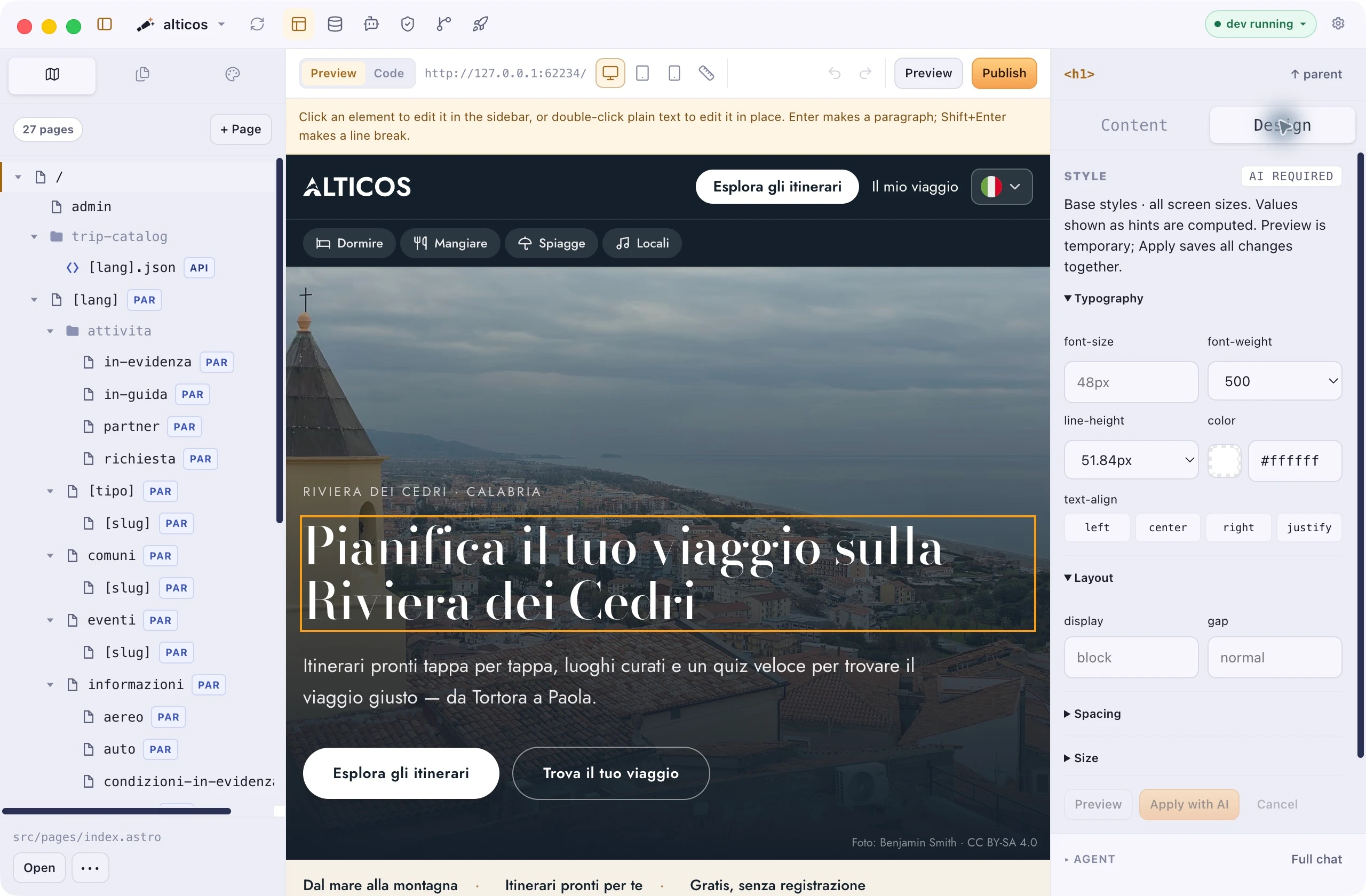
Select an element, inspect its design and preview the next change. Explore the visual editor →

Astrology visual editor with a selected headline and its typography controls
Visual editing in Astrology 0.8.3, shown on the ALTICOS project.Site shown: ALTICOS. Preview photo: Benjamin Smith · CC BY-SA 4.0.

Bring the improvements into your next project

Already have Astrology? Check for updates from Projects or Settings, or download from your account.

Requires Node.js, npm and Git · AI features use your installed agent CLI