Inside Astrology

One workspace.
From first idea to live site.

Your agent gets the work moving. Astrology gives you the tools to shape the page, keep content organised and review what you deliver.

Your agent, your choice

Work with the assistant you already know.

Claude Code, Codex, Cursor Agent and Google Antigravity work inside your project. Continue a conversation or start a new one, with the page and selected element as context when you need it.

  • Claude Code
  • Codex
  • Cursor Agent
  • Google Antigravity

Propose

Talk through the approach before changing files.

Edit

Let the agent make changes to your project.

Autonomous

Let it use commands to build, check and finish the work.

Install and sign in to the agent’s CLI first; AI access comes from your own account. Edit and Autonomous write directly to your project. Permissions depend on the agent and its configuration.

01 · Start with a direction

Your next site starts here.

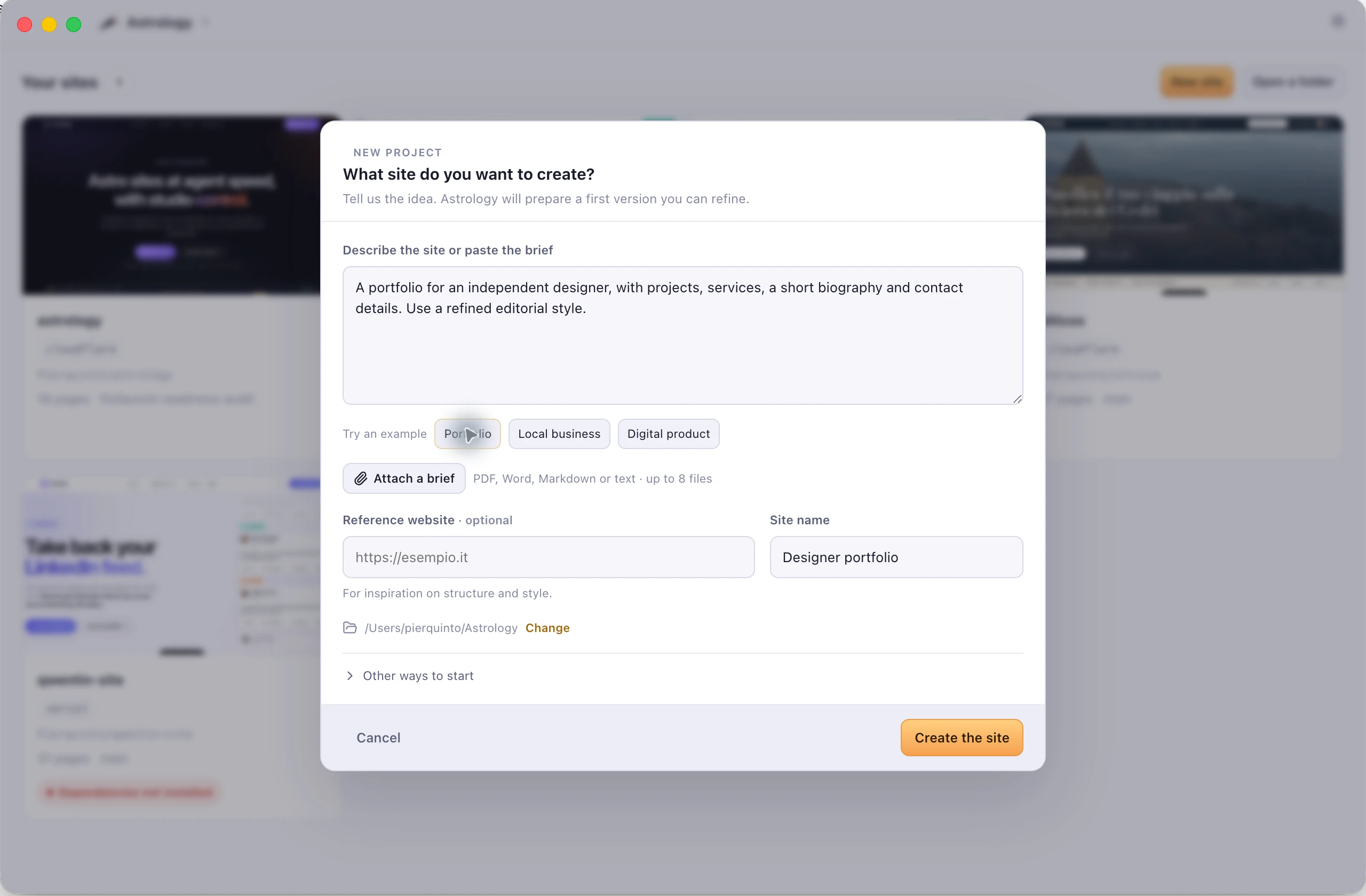
Describe the site or paste a complete client brief. Attach readable PDF, Word, Markdown or text documents and add a reference website if it helps. Astrology starts the project and hands the brief to your chosen agent for a first version you can preview and refine.

  • Start with a short idea or a structured client brief
  • Keep the brief outside the site repository
  • Use Other ways to start for a template, website recreation or folder import
Astrology's new project dialog with an example portfolio brief, attachment control and optional reference website
The brief-first new project flow in Astrology 0.8.5, shown with an example portfolio brief.

Attached documents must contain selectable text and fit within the app's brief limits. The reference website guides structure and style; review the agent's result before using it for a client.

02 · Make it yours

See it. Select it. Shape it.

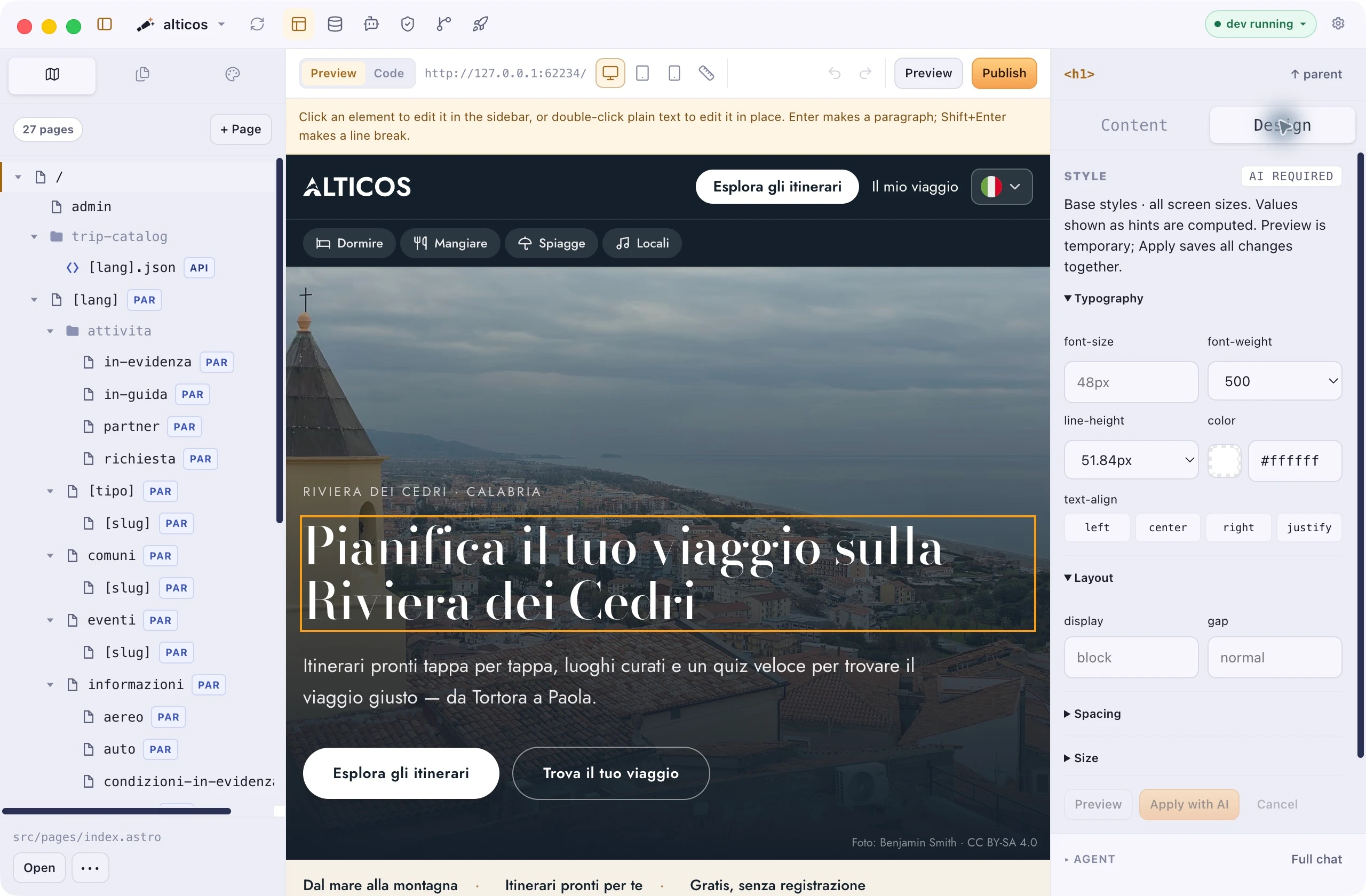
Work on the page itself. Select text, links or images, inspect an element’s design and check the layout at desktop, tablet and mobile widths. Your agent is there when a change needs more than a visual edit.

  • Edit supported text in place, including paragraphs and line breaks
  • Preview typography, spacing and appearance changes before applying them
  • Replace images from Finder and add descriptive names and alternative text
Astrology visual editor with the ALTICOS headline selected, page tree and typography controls
The selected headline and its design controls, alongside the page tree. Captured in Astrology 0.8.3.Site shown: ALTICOS. Preview photo: Benjamin Smith · CC BY-SA 4.0.

Direct edits need a clear match in the source. Generated values and complex styles use source editing or the agent; the inspector tells you when AI is required.

03 · Keep content moving

A home for every entry.

Update a destination guide, a blog post or a product description without searching through folders. Content brings your file-based Astro collections into a dedicated workspace.

  • Search entries and filter by language
  • Edit Markdown or MDX text alongside simple metadata fields
  • Create, duplicate and manage entries in your project files
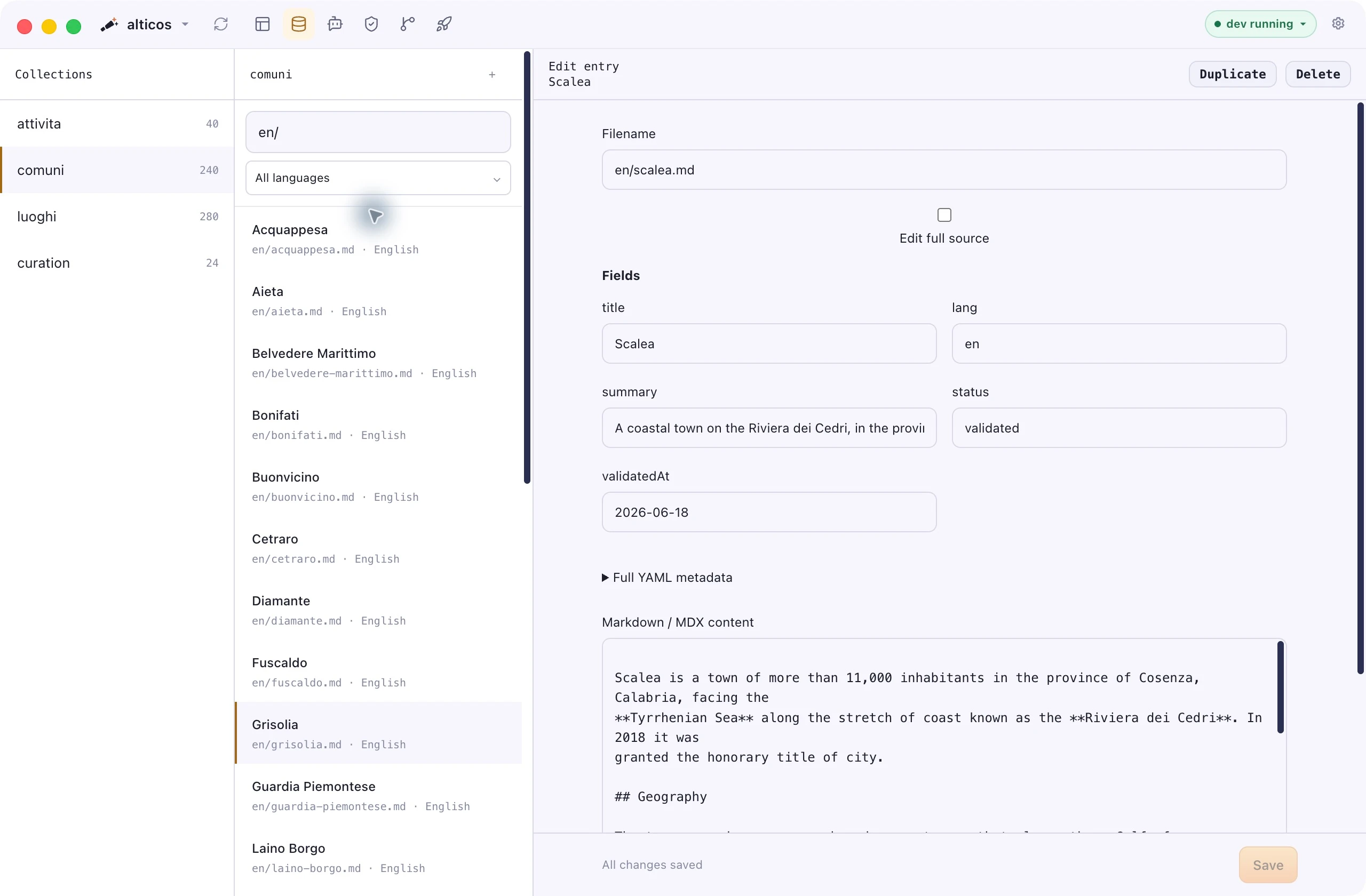
Astrology Content workspace showing collections, English entries and Scalea metadata with Markdown content
An English entry from ALTICOS, with its metadata and Markdown body. Captured in Astrology 0.8.3.

Simple text, number and boolean metadata fields are editable directly. Nested metadata remains available as YAML, with full-source editing for more complex content.
04 · Deliver with confidence

Know what goes live, and where.

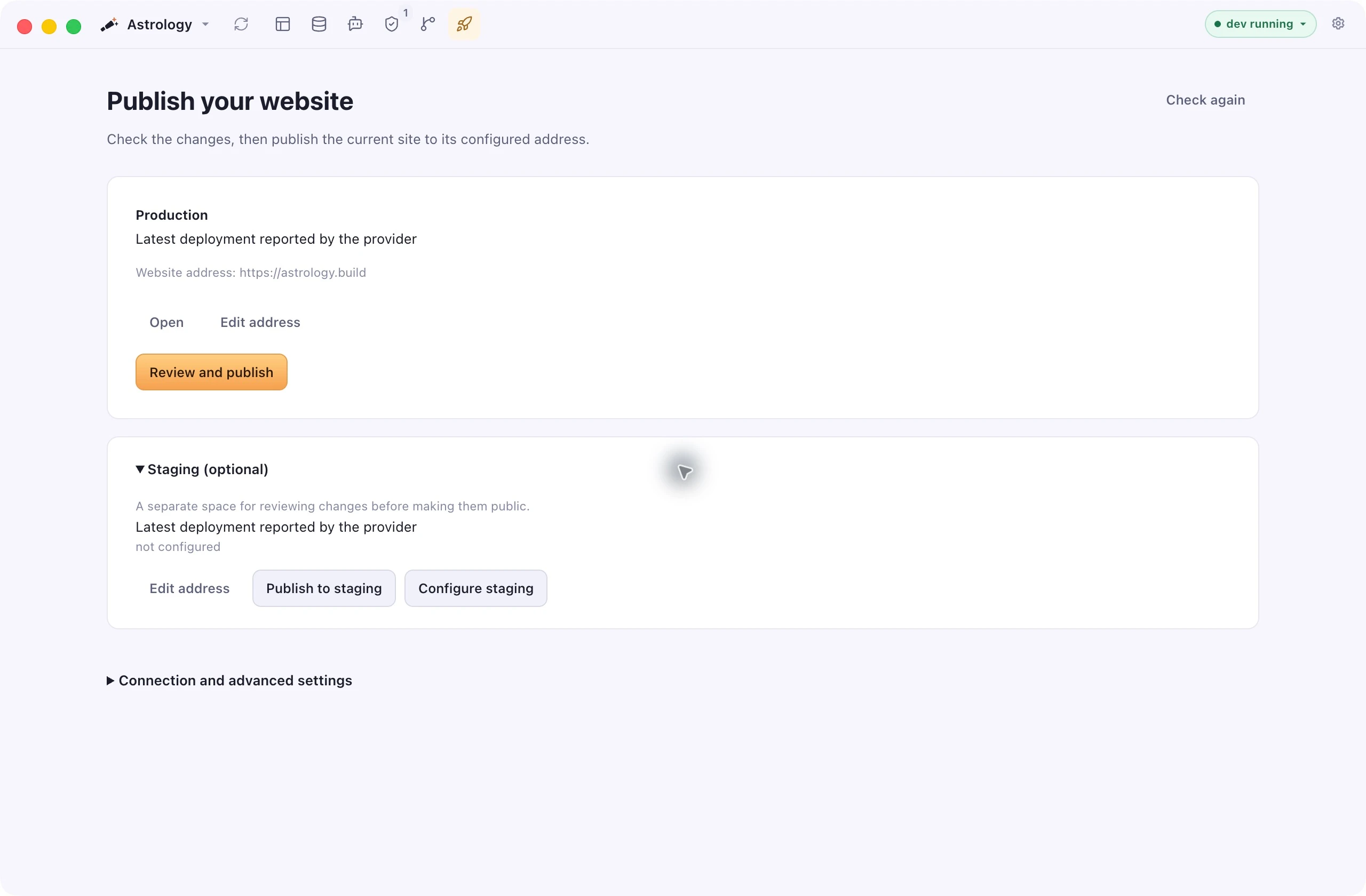
Check links, translations and dependencies, review your Git changes, then publish. Production and Staging give your public site and your test environment their own space.

  • Review changes and save them with Git before publication
  • Check for newer commits on GitHub and update a clean local project
  • Publish through your Vercel, Netlify or Cloudflare account
Astrology Publish workspace with the production website address, review action and optional staging configuration
Production is connected; Staging is optional and still needs its address configured in this project. Captured in Astrology 0.8.3.

Connect your hosting account and configure each environment first. The app shows connection issues and the status reported by your provider; staging setup depends on the host.

Also in your workspace

The details that keep work moving.

Ask for a change in place

Ask your agent for a change while looking at the page. It receives the open page and selected element as context, and the conversation continues in the full chat.

A preview that manages itself

Open a page and its preview starts for you. Start, stop or restart it from the workspace whenever you need to.

Hand a failure to the agent

Pass a failed build or publication to your agent with the error details attached. Follow the repair in the same project conversation.

Manage pages

Create, duplicate, move and delete pages. Reuse a project layout for a new page and inspect references before changing a route.

Diagnostics and translations

Find missing images, broken internal links, translation gaps and dependency issues. Use the available automatic, agent-assisted or manual remedies.

Tools and updates

Check your connected tools and project dependencies. Keep Astrology itself up to date from Projects or Settings.

Deliver client sites at agent speed

Buy your licence. Download Astrology. Start creating.

Requires Node.js, npm and Git · AI features use your installed agent CLI